![Mixergy Logotype Reversed White-3.png]](https://support.mixergy.co.uk/hs-fs/hubfs/Mixergy%20Logotype%20Reversed%20White-3.png?height=40&name=Mixergy%20Logotype%20Reversed%20White-3.png)
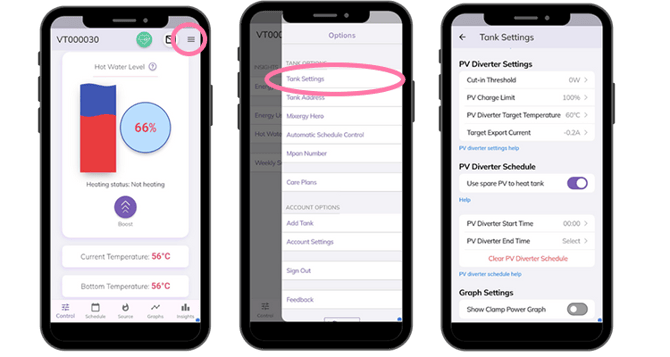
Go to Solar PV Diverter Settings in the app, by selecting the Tank Settings in the main menu, and scrolling down to PV Diverter Settings.
How to check your solar panels are connected
- Make sure Use Spare PV to Heat Tank is switched on.
- Make sure Show Clamp Power Graph is switched on.
- Check for activity on the Graphs or Measurements tab to see whether solar energy is being used.
PV Diverter settings explained
- Cut-in Threshold: The minimum power the PV diverter must be producing before it will start heating the cylinder 0w – 500w. Normally set to 0w.
Note: If Tesla Batteries are installed it is recommended to set the cut-in threshold to 100w
- PV Charge Limit: The maximum hot water level the cylinder can reach when being heated by the PV diverter 10% - 100%. Normally 10%.
- PV Diverter Target Temperature: The temperature to which the PV diverter can heat the water. This can be higher than the target temperature to optimise solar gain. Off - 60°C if off will be same as target temperature, set to 60°C to optimise solar gain.
- Target Export Current: The PV diverter will be controlled with the aim of maintaining the export current from the premises at this value 0.0A to -1.0A.
PV Diverter Schedule explained
- Use Spare PV to Heat Tank: When enabled, any spare PV energy will be used to heat the cylinder. By disabling this setting, any spare PV energy will be exported to the grid.
Note: Mixergy iHP X requires a minimum of 250w available and uses the heat pump to heat the cylinder.
- PV Diverter Start Time: The time at which the PV diverter can start heating the Mixergy cylinder.
- PV Diverter End Time: The time at which the PV diverter will stop heating the Mixergy cylinder.
Note: If the PV Diverter Start Time and PV Diverter End Time settings have been set, the Use spare PV to heat tank setting will be ignored.
Graph settings
- Show Clamp Power Graph: If enabled CT Clamp power in will be visible in the Graphs section.