
If you don’t have enough hot water when you expect it, start with step 1 below. You can check the tank’s lights even if you don’t have the Mixergy app.
If you have enough hot water but the tank heats at unexpected times, go to “My tank heats at other times” near the end of this guide.
1. Check how much hot water is available
Find the Mixergy Gauge: the slim black panel with lights and buttons on your tank. The red lights show how much hot water is ready to use. The green lights show the amount the tank is trying to heat.
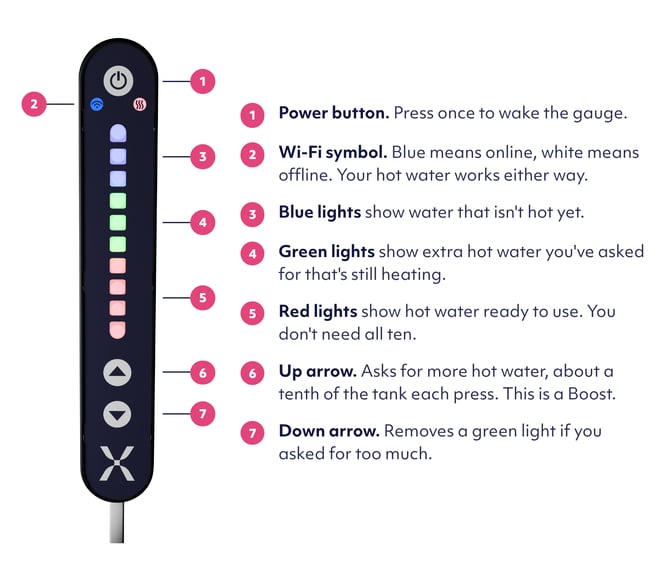
If you can see the schedule in the app, compare its hot water target with the red light level. The target is the amount of water you’ve asked the tank to heat.
If the red lights show that the target has already been reached, the tank doesn’t need to heat more water for that schedule. If you still need more hot water, see “Need hot water now?” below.
If the target hasn’t been reached, or you don’t know what the target is, continue to step 2.
2. Check whether a manual heating is scheduled
A manual schedule sets when your tank should heat and how much water it should heat. You need to check the manual schedule before deciding that the tank has missed it.
If you have the Mixergy app, follow Set schedules and smart control to find your tank’s manual schedule. Check whether it is enabled and includes today. Look at the heating times and the hot water target. Also check whether Holiday mode, a setting used to pause normal heating while you’re away, is active.
If there is no manual schedule for today, or heating has been paused, that could explain why the tank hasn’t heated. Follow the linked guide to change the manual schedule, or turn off Holiday mode if you no longer need it. Save any changes, then continue to step 3.
If the manual schedule is enabled for today and heating hasn’t been paused, continue to step 3.
3. See whether the water heats during the scheduled period
Once you know when heating is scheduled, check the red light level before that period begins. Leave the tank switched on and keep the settings unchanged during the check.
If the red light level rises, the water is heating. At the end of the scheduled period, compare it with the target. If the target is reached, no further check is needed.
If some water heats but the target isn’t reached, or the red light level doesn’t rise at all, continue to step 4.
If the tank appears to follow the schedule at a different time, go to “My tank heats at other times” below.
Need hot water now?
A boost asks the tank to heat extra hot water outside the schedule. Use the Boost option in the app or the up arrow on the gauge. See How to boost your hot water for instructions.
If you use a boost while checking the schedule, the extra heating means you won’t be able to tell whether the schedule alone heated the water. Check a later scheduled period without using Boost. If a boost also fails to heat the water, contact the team above.
My tank heats at other times
Heating outside the schedule does not always mean there is a fault. First, check whether someone used Boost in the app or pressed the up arrow on the gauge.
If no one used Boost, your tank may be maintaining the hot water level required by its settings or running its cleansing cycle, which heats water for hygiene. A tank set up to use spare solar energy can also heat when that energy is available. Frost protection can start heating if the tank temperature is very low.
If none of these explains the heating, contact the team above.
If you’ve changed the schedule but the tank hasn’t received the change
Check its internet connection. A blue Wi-Fi symbol on the gauge means the tank is online; a white symbol means it is offline. See Check your tank’s connection status.
Saved schedules normally continue while the tank is offline, but you need a connection to view live app data or send new settings. If the tank has lost power, check that it is switched on. If the problem continues after a restart, contact the team above.
Common questions
Why didn’t the tank heat when I expected it to?
It may already have enough hot water to meet the target. If it hasn’t, check whether the schedule includes today and whether heating has been paused. Follow the checks above if the target is still not reached.
Why does the tank heat outside the schedule?
A Boost or an automatic hygiene cycle can start heating outside the schedule. See “My tank heats at other times” above.
Can I check the problem without the app?
Yes. You can look at the gauge lights.
Will the schedule work if the tank is offline?
Saved schedules normally continue while the tank is offline. An internet connection is needed to send new settings or view live app information.
Should I switch the tank off to reset the schedule?
No. Leave it switched on and follow the checks above. If it still fails to reach the scheduled target, ask for help rather than repeatedly changing settings.