![Mixergy Logotype Reversed White-3.png]](https://support.mixergy.co.uk/hs-fs/hubfs/Mixergy%20Logotype%20Reversed%20White-3.png?height=40&name=Mixergy%20Logotype%20Reversed%20White-3.png)
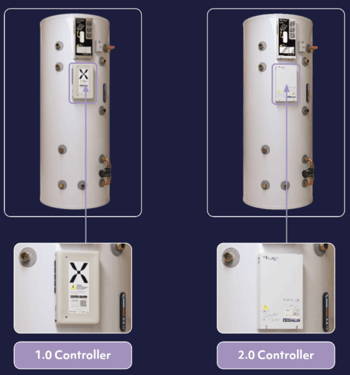
Check you have a 1.0 controller
The 2.0 controller is a plain white box mounted on the front of your tank, marked "mixergy" and "Smart controller". The connection label sits on the bottom right of the controller.
If your controller is a white box with a large X logo on it, you have a 1.0 controller. Follow Connect your tank to the internet (1.0 controller) instead.
This applies whether you have a Mixergy X, Solar X, iHP X or Cube X.
Before you start
- Download the Mixergy App from the App Store or Google Play.
- Open the app, tap Create Account and enter your details. If your address doesn't appear (common in new developments), type it in manually.
- Open the verification email, click the link and return to the app.
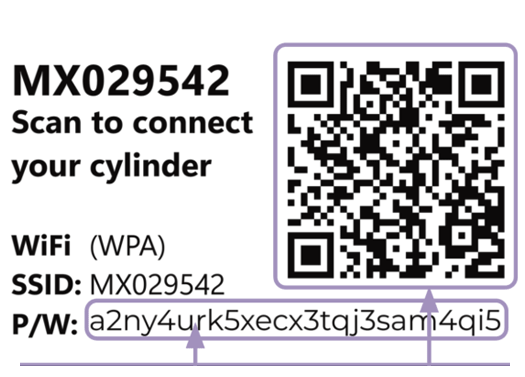
You'll also need the label on the bottom right of your controller. It shows your MX number, the network name (SSID) and the password (P/W), along with a QR code.
Connect your tank
The 2.0 controller connects in one of two ways. If a network cable runs from your controller, you have an Ethernet setup. If not, you have a Wi-Fi setup.
Ethernet setup
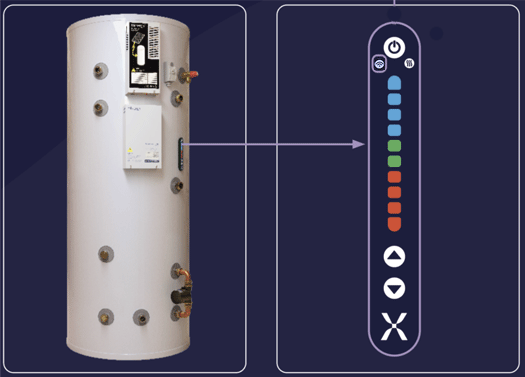
Plug the other end of the cable into your Wi-Fi router. The tank will connect automatically as long as your internet is working. Check that the Wi-Fi symbol on the Mixergy Gauge is blue to confirm.
If your internet is fine but the tank still isn't connecting, contact your installer.
Wi-Fi setup
- In the app, follow the prompts to add your tank.
- When asked for the Mixdevice code, scan the QR code on the controller label, or type in the code shown next to P/W.
- The app creates a direct link between your phone and the tank. Follow the steps on screen to connect the tank to your home Wi-Fi network.
If it's not connecting
First, check the following on your phone:
- Wi-Fi is enabled
- Mobile hotspot is turned off
- VPNs are disconnected during setup
If your phone settings are correct, check the Wi-Fi light on the Gauge on the side of your tank for the following options:
-
If the light is white, the tank is ready to connect. Try again.
-
If the light is blue, the tank is already connected to the internet (this may be via Ethernet). Close the app fully, log back in and check if your tank appears.
-
If the light is any other colour, restart the tank by turning the Gauge off and on, then try again.
-
If there's no light, make sure the tank is powered on. See this article to learn more about how to use the Gauge.
Still stuck?
If the tank still isn’t connecting after these checks, call our Homeowners & Residents line on 01865 595 875. Hours: Monday to Friday, 09:00 – 17:00.