
Before you start
1. Check your tank is on and online
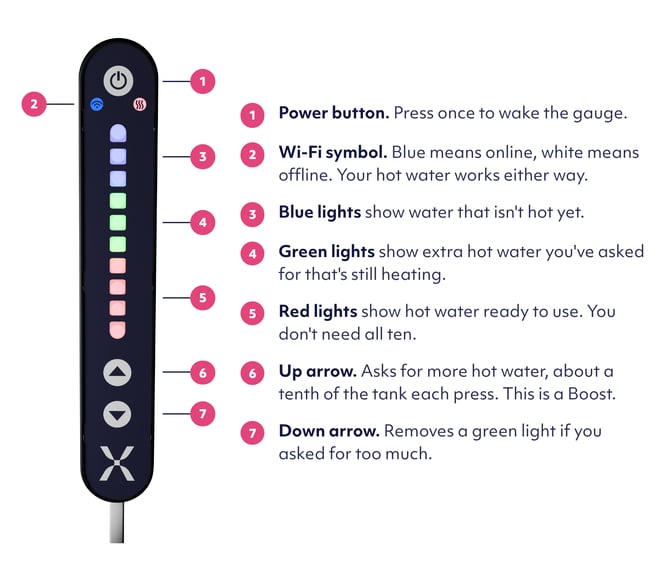
Look at the gauge on the front of your tank.
- No lights: press the power button on the gauge once to wake it.
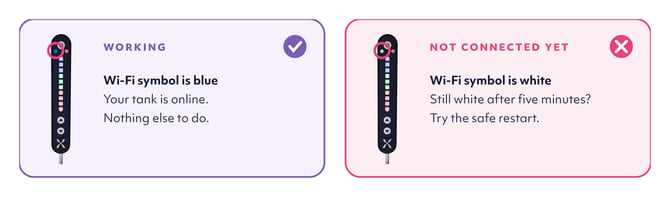
- Wi-Fi symbol is blue: your tank is online and you’re ready for the next step.
- Wi-Fi symbol is white: your tank isn’t connected yet. Follow Connect your tank to the internet, then come back here once the symbol is blue.
Your tank needs to be online before the previous account can be removed, so please don’t skip this.
 2. Download the Mixergy app
Once your tank is online, download the Mixergy app from the App Store or Google Play. Sign in, or choose Create Account if you don’t have one yet. If you’ve created a new account, open the verification email from Mixergy and tap the link, then go back to the app and sign in.
3. Find your tank’s QR code
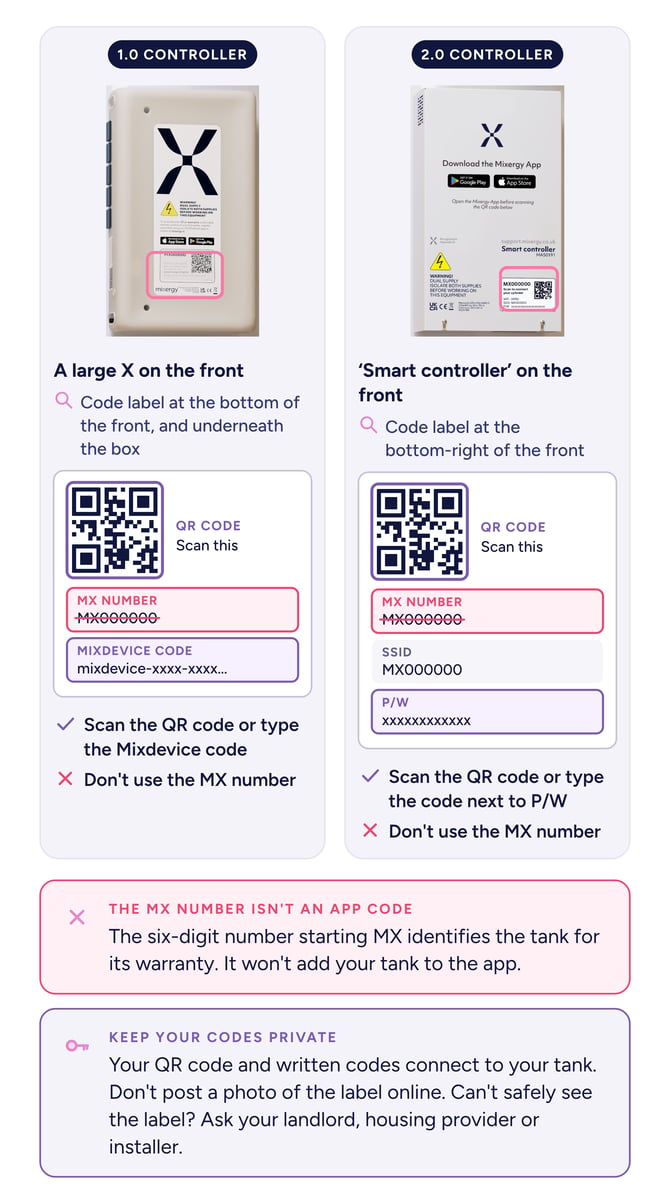
It’s on the label on the controller. The six-digit number starting MX is your warranty serial number, not your app code, so it won’t add your tank.
Please don’t switch your tank off at the mains at any point during these steps.
Add your tank and take ownership
- In the app, start adding a tank.
- Scan the QR code on the controller label.
- Follow the in app steps to continue your setup.
- The app checks your tank. If it’s already linked to another account, you’ll see a message asking if you want to take ownership.
- Tap Yes to continue.
If you tap No, you won’t be able to add the tank, but you can start again at any time.
If your tank has gone offline, the app shows a Check Gauge Light screen. Reconnect it using the connection guides, wait until the Wi-Fi light on the gauge is solid blue, then tap Solid Blue in the app.
Remove the previous account using the gauge
You’ll see a Disassociate tank screen. Stay next to your tank for this step.
- On the gauge, press and hold the up arrow and the power button together for 15 seconds.
- Watch the gauge light. It will change colour, then go back to solid blue.
- Once it’s solid blue again, tap Tank disassociated in the app.
- The app shows Associating tank while it adds the tank to your account. This takes around 20 seconds, so keep the app open.
- When you see Success! Your device is now connected, tap Continue.
If something goes wrong
- The gauge light doesn’t change colour: make sure you’re pressing the up arrow and power button at the same time, and hold them for the full 15 seconds.
- The Wi-Fi light won’t go solid blue: check your connection using Connect your tank to the internet.
- You tapped No when asked to take ownership: start adding the tank again from the beginning.
- The QR code won’t scan or isn’t accepted: check you’re using the code on the controller label, not the MX serial number. See Find your Mixergy code and controller version.
What if the transfer does not work?
Check that the tank is online and that the correct device code is being used. If the app says the tank is already registered, contact the previous account holder or housing.
IMPORTANT
The tank needs power for hot water, internet connection and app setup. Do not switch it off at the mains as part of the transfer.
Common questions
Will the previous account holder still have access?
No. Resetting the account connection removes the tank from the previous account. They will no longer be able to view or control it through the Mixergy app.
Will the tank stop heating water?
No. The tank can continue heating water while the new account is being set up. You can also check and boost the hot water using the gauge.
Does this transfer the warranty?
No. The app account and the tank’s warranty records are separate. See our Warranty Terms and Conditions to learn more about your options.