
If you have no hot water, work through these steps in order. Each step tells you what to look for and what to do next. You will not need the Mixergy app.
Do not remove the controller cover, touch wiring, turn valves or try to repair the plumbing. If you rent your home, contact your landlord or housing provider whenever this guide tells you to ask for help.
IMPORTANT
If you can see water leaking, smell burning or notice another immediate safety concern, stop using the system and contact your landlord, housing provider or installer straight away.
Follow these checks in order:
1. Run a hot tap
Turn on a hot tap and let it run for long enough for hot water to reach it. Check the temperature carefully.
- If the water becomes hot: The tank is working. You can stop here.
- If no water comes out, or the flow is very weak: Try a second hot tap, then check whether the cold taps work normally.
- If the cold taps also have no water or very weak flow, check your local water supplier’s website or phone service for a known interruption in your area. If no problem is reported, contact your landlord, housing provider or a qualified plumber.
- If the cold taps work normally but the hot taps do not, this is likely to be a plumbing problem. Contact your landlord, housing provider or a qualified plumber.
- Do not turn valves near the tank.
- If water flows normally but stays cold or only slightly warm: Continue to step 2.
2. Check whether the Mixergy Gauge has power
Find the Mixergy Gauge, which is the slim black panel with lights and buttons on the tank. Press the power button once to wake it, then look for lights. After this, we call it the gauge.
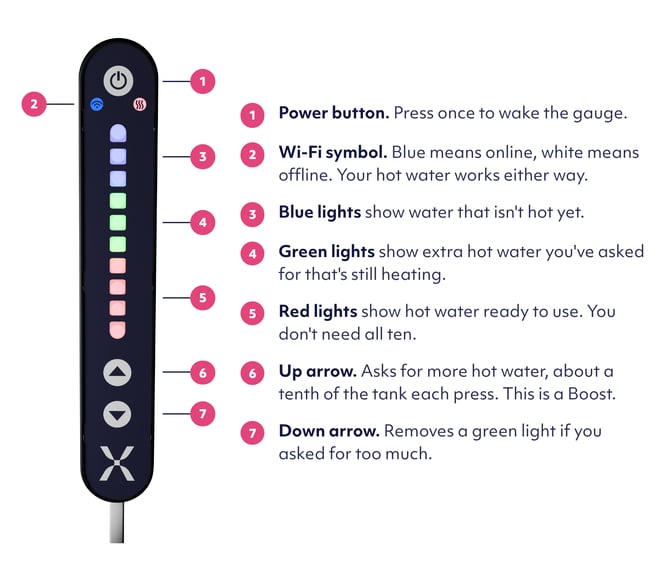
- If lights appear: Continue to step 3.
- If no lights appear: Check that the normal visible electrical switch for the tank is on, but only if you can reach it safely. Do not open the controller box or remove any covers.
- If the switch is on and the gauge still has no lights: Stop here and ask for help. The tank might not have electrical power.
3. Check the red lights
The red lights on the gauge show how much hot water the tank believes is ready.
- If several red lights are showing: Try a second hot tap. If every hot tap stays cold, stop here and ask for help. The tank believes hot water is ready, but it might not be reaching the taps correctly.
- If there are no red lights, or only one or two: Continue to step 4 and ask the tank to heat more water.
4. Ask the tank to heat more water
Press the up arrow on the gauge once. This asks the tank to heat a small amount of additional water. This is called a Boost.
Look at the gauge immediately after pressing the arrow.
- If a green light appears: The tank has accepted the request. Continue to step 5.
- If no green light appears: Press the power button once to make sure the gauge is awake, then try the up arrow again. If no green light appears, stop and ask for help.
If you use the Mixergy app and the tank is online, you can also select Boost in the app. The app is optional and is not needed for these checks.
5. Wait and watch the green light
A green light shows the amount of water the tank is working towards. It turns red when that water is hot and ready. Heating is not instant.
The time needed depends on how much water you requested and how the tank is heated. Typically it takes 15 minutes per light to go from green to red, but you should wait a little longer to be sure.
- If the green light turns red: Run the hot tap again. If the water is now hot, the problem is resolved.
- If the light stays green for much longer than normal and the water remains cold: The tank accepted the request but is not receiving the heat it needs. Continue to step 6.
Do not keep pressing the up arrow while you wait. Each press asks the tank to heat more water.
6. Ask for help
If you rent your home, contact your landlord or housing provider first. If you own your home, contact your installer.
Tell them:
- Whether water flows normally from the hot taps.
- Whether the gauge has any lights.
- How many red lights are showing.
- Whether a green light appeared after you pressed the up arrow.
- Whether the green light later turned red.
- Whether your boiler or heat pump shows a warning.
One thing to remember
Leave the tank switched on during normal use. It needs electrical power to prepare hot water and run its safety functions. Losing the internet connection does not normally stop the tank heating, so use the gauge even if the app says the tank is offline.
Common questions
What if no water comes from any tap?
Check your local water supplier’s website or phone service for a known interruption in your area. If no problem is reported, contact your landlord, housing provider or a qualified plumber. Do not adjust valves near the tank.
What if the gauge shows red lights but the water is cold?
Try another hot tap. If every hot tap stays cold, ask for help. The tank believes hot water is ready, but it may not be reaching the taps correctly.
Can I still use Boost if the app says the tank is offline?
Yes. Press the up arrow on the gauge. The tank can heat water without an internet connection.
Why might heating take longer than expected?
Heating time depends on the amount requested. Typically it takes 15 minutes for each light to turn from green to red.
What if one tap is cold but the others are hot?
This points to a problem with that tap or shower rather than the tank. Contact your landlord, housing provider or a qualified plumber.
Need to share with others? Use this image
