
If you have moved into a home with a Mixergy tank, this guide will help you understand the controls, check how much hot water you have and set up the app if you want to use it.
You can always control your hot water using the Mixergy Gauge (the slim black panel with lights and buttons on the tank). The app is optional, but it gives you an easier way to check your hot water, set schedules, understand your usage and make better use of lower-cost energy where available.
This page will help you:
- Check that your tank is switched on
- Understand the red and green lights on the gauge
- Boost the tank when you need more hot water
- Set up the Mixergy app
- Find the right help if you cannot get started
How to use your Mixergy hot water controls
You can control your hot water using the Mixergy Gauge. Use it to check how much hot water you have and boost the tank when you need more.
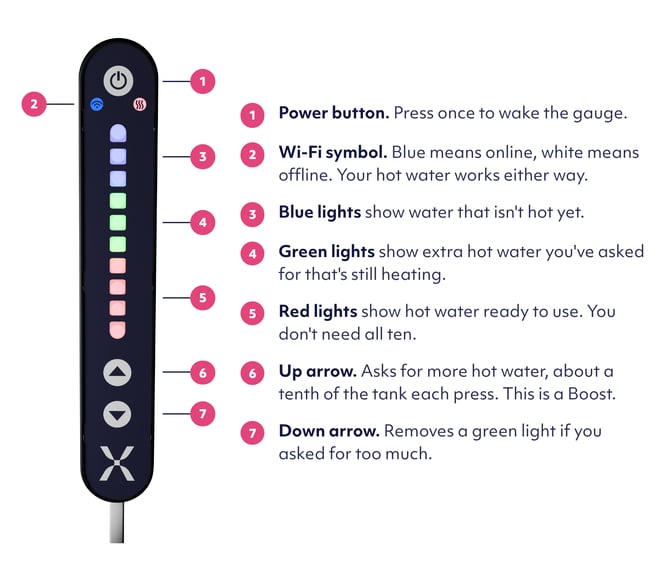
- Power button: Press and hold to turn the tank on or off.
- Wi-Fi connection: Shows blue when the tank is connected.
- Blue lights: Show the amount of cold water in the tank.
- Green lights: Show the amount of water the tank is heating towards.
- Red lights: Show the amount of hot water ready to use.
- Up arrow: Press to boost the tank in 10% increments.
- Down arrow: Press to reduce the boost in 10% increments.
HOW IT WORKS
Red lights show the hot water that is ready to use now. Green lights show the amount the tank is heating towards.
How to check that your tank is on
- Look at the row of lights on the gauge.
- If you can see coloured lights, the tank is on.
- If there are no lights, press and hold the power button on the gauge.
The lights should come on. If they do not, do not remove any covers or change the power supply. Go to your Installer or Housing Provider to check the installation.
How to check your tank is online
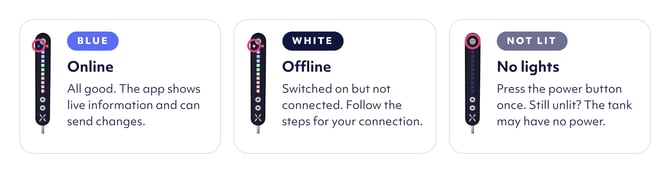
Your Mixergy tank can connect to your home internet so you can use the Mixergy app. Check your tank is online first by looking for the blue Wi-Fi symbol on the gauge. If it isn’t, our Get connected guide will walk you through it.
Save money and energy with the Mixergy app
You do not need the app to get hot water, but it can help you get more from your Mixergy tank and reduce your energy costs.
The app lets you:
- Check how much hot water is ready without going to the tank.
- Heat more water when you need it.
- Set a schedule so the tank heats the right amount of water at the right time.
- See how much hot water and energy you use.
- Add your energy tariff so the tank can use cheaper energy periods, where available.
Tank already has an owner?
First try to get connected. Download the app, create your account and choose to add
your tank. If the app says the tank already belongs to someone else, you'll need to
transfer it to your account.
How to check how much hot water you have
Look at the row of lights on the Mixergy Gauge.
The red lights show how much hot water is ready to use. The tank is shown as ten equal parts. The more red lights you can see, the more hot water you have.
- One red light means a small part of the tank is hot.
- Five red lights mean about half of the tank is hot.
- Ten red lights mean the tank is full of hot water.
The amount you need will depend on your tank size and how much hot water your household uses.
How much hot water do I need?
This will be different in every home. A shower usually uses less hot water than a bath. Several showers will need more than one shower.
The amount you use also depends on your tank size, how long you shower and how powerful your shower is.
Check the red lights before and after a shower or bath. This will help you learn how many lights your household normally needs.
What do I do if I need more hot water?
If you do not have enough hot water, use the Mixergy Gauge to tell the tank to heat more.
- Press the up arrow once. One extra green light will appear.
- Each green light shows another part of the tank that will be heated.
- Press the up arrow again if you need more.
- Wait for the green lights to turn red. Red means that hot water is ready to use.
- If you select too much, press the down arrow to reduce the amount of water the tank will heat.
TOP TIP
If you are unsure how much hot water you need, add a small boost first by pressing the up arrow once . You can press the up arrow again if you need more.
Common Questions
Do I need the Mixergy app to get hot water?
No. You can check how much hot water is ready and heat more water using the Mixergy Gauge. The gauge is the slim black panel with lights and buttons on the tank.
Can the Mixergy app help me save money?
Yes. The app can help you avoid heating more water than you need. You can also add your energy tariff so the tank can use cheaper energy periods, where available.
How do I know how much hot water I have?
Look at the red lights on the Mixergy Gauge. The more red lights you can see, the more hot water is ready to use. Five red lights mean about half of the tank is hot. Ten red lights mean the tank is full of hot water.
What should I do if I need more hot water?
Press the up arrow on the Mixergy Gauge. A green light will appear to show the extra water that the tank will heat. Wait for the green light to turn red before using the hot water.