
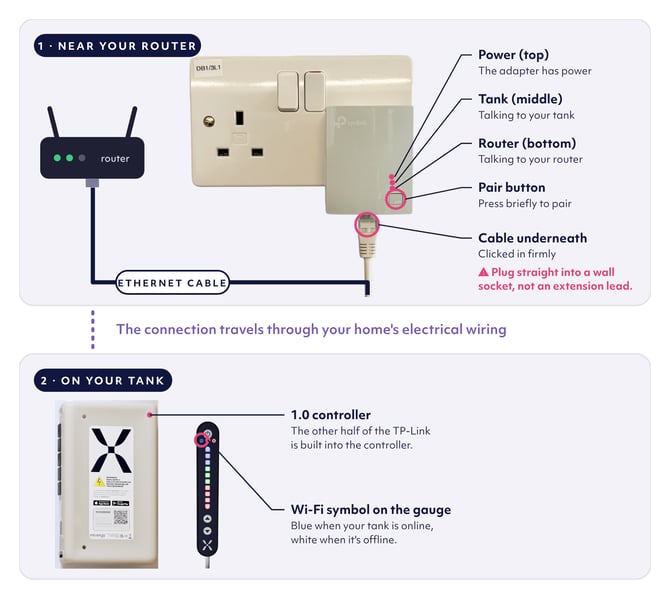
If your Mixergy tank has a 1.0 controller, it may connect to the internet through a TP-Link adapter. The 1.0 controller is the white box on your tank with a large X logo. The TP-Link adapter plugs into a wall socket near your internet router (the box that provides Wi-Fi in your home), and you’ll see the TP-Link name printed on the front.
The other half of the connection is built into the Mixergy controller, so there isn’t a second plug to find at the tank end. The two work together using your home’s electrical wiring to carry the internet connection to the tank.
Follow this guide for first time set up of if it was working before and now the Wi-Fi symbol on the gauge is not blue. You’ll need a pen or paperclip for the pairing step.
IMPORTANT
Losing the internet connection does not stop your tank heating water. You can use the Mixergy Gauge (the slim black control on the front of your tank) to check how much hot water is ready and ask the tank to heat more.
Watch this video for a step-by-step guide.
Before you start
- Check you have internet in the home.
- Don't plug the adaptor into an extension lead.
- Ensure the plug where the adaptor is, is on the same electrical circuit as the tank.
How to connect or reconnect the tank
1. Find out which setup you have
This guide is only for a Mixergy 1.0 controller that connects through a TP-Link adapter beside your router. If you can’t see a TP-Link adapter near your router, use Find your Mixergy code and controller version before continuing.
Find your Mixergy controller version
Check that the adapter is plugged directly into a wall socket. Don’t use an extension lead, multi-socket block or surge-protected power strip, because these can block the signal. Don’t open the controller box or remove any covers.
2. Check the adapter lights
Push the adapter firmly into its wall socket and make sure the socket is switched on.
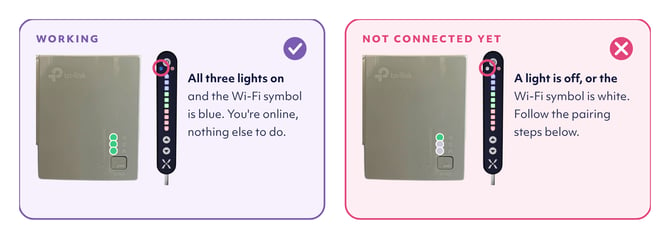
The TP-Link adapter has three lights. Power at the top shows it’s switched on, Tank in the middle shows it can reach your Mixergy controller, and Router at the bottom shows it’s connected to your router. When all three are green, the adapter is working. If any lights are off or red, carry on with the steps below.
3. Check the cable and your home internet
Check the Ethernet cable connecting your router to the TP-Link adapter. It normally has a clear plastic plug with a small clip at each end. Push each end in gently until it feels secure.
Make sure your router has power. Then open a website on a phone, tablet or computer connected to your home Wi-Fi. If the website doesn’t load, the problem is with your home internet connection rather than the tank.
4. Check whether the tank is online
Wait up to five minutes, then look at the Mixergy Gauge on the tank. Find the Wi-Fi symbol, which looks like curved lines spreading out from a small point. If it’s blue, the tank is online and you don’t need to continue.
If the Wi-Fi symbol is not blue, carry on to step 5.
5. Restart the connection
Restarting switches the tank and adapter off and back on without deleting any stored connection details.
- Press and hold the power button on the Mixergy Gauge until its lights turn off. Don’t use the main electrical switch on the wall, sometimes called the mains or isolation switch.
- Unplug the TP-Link adapter from its wall socket, wait 10 seconds, then plug it back in and switch the socket on.
- Press and hold the power button on the gauge until its lights come on.
- Wait up to five minutes and check the Wi-Fi symbol again. If it’s blue, you can stop here.
6. Pair the adapter and controller
Pairing tells the TP-Link adapter and your Mixergy controller to recognise each other.
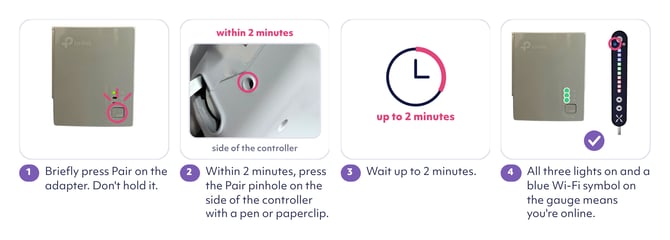
- Press the Pair button on the TP-Link adapter briefly, then release it. Don’t hold it down.
- Within two minutes, use a pen or paperclip to briefly press the Pair button on the bottom left of the Mixergy controller, then release it.
- Wait up to two minutes. All three lights on the TP-Link should turn green, the Wi-Fi symbol on the gauge should turn blue, and your tank should appear in the Mixergy app.
- If it doesn’t connect, repeat the pairing up to three times before moving on. It often takes more than one try.
Still not pairing? Try it closer to your tank
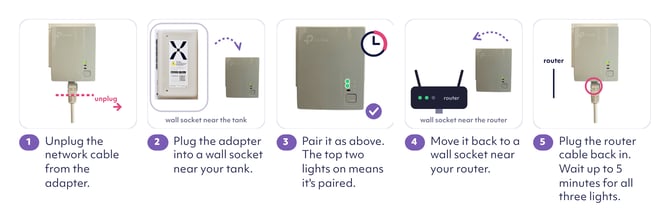
The signal travels through your home’s electrical wiring, so a shorter distance can make a real difference. The adapter doesn’t need the network cable to pair with your tank, and it remembers the pairing once it’s done, so you can pair it nearby and then put it back.
- Unplug the network cable and take the adapter out of its socket.
- Plug it into a wall socket closer to your tank. Use a wall socket, not an extension lead, on the same electrical circuit as your tank.
- Pair it with your tank as before.
- Once it’s paired, plug it back into its original socket near your router and reconnect the network cable.
 7. Reset the adapter and controller
Only do this if pairing has failed at least three times. A reset clears the old connection settings from both units so they can start fresh.
- Press and hold the Pair button on the TP-Link adapter for 10 seconds, then let go.
- Using a pen or paperclip, press and hold the Pair button on the bottom left of the Mixergy controller for 10 seconds, then let go.
- Both units will restart. Give them a couple of minutes to find each other and connect on their own.
- If the Wi-Fi symbol on the gauge still isn’t blue, go back to step 6 and pair them again.
If your tank is still offline
You can keep using the gauge to check how much hot water is ready. Press the up arrow when you want the tank to heat more water. This is called a Boost.
Surge Protection
Some fuse boxes (also called consumer units) have surge protection built in, which can block the signal between the adapter and the controller. Please don’t investigate this yourself, and ask your installer or a qualified electrician to check this is none of the above has worked.
Common Questions
Does the tank stop heating when it’s offline?
No. The internet connection is needed for app features such as remote control and online updates. You can still check your hot water level and ask the tank to heat more using the gauge.
Can I use an extension lead?
No. Plug the adapter directly into a standard wall socket. Extension leads, multi-socket blocks and surge-protected power strips can block the signal travelling through the electrical wiring.
Where is the second TP-Link adapter?
It’s built into the Mixergy controller, so there isn’t a second plug to find. You can reach its Pair button from the outside, on the bottom left of the controller, with a pen or paperclip.
It was connected before. Why has it stopped?
Something nearby has usually changed, like a new router, a Wi-Fi booster, another powerline adapter, new appliances on the same circuit or the adapter being moved. Restarting and re-pairing usually fixes it.