
You might be asked for a Mixergy code when you add your tank to the Mixergy app, connect it to the internet or ask for help. This page shows you where to look and which code to use.
You do not need to open the controller or know any technical terms. The information you need is printed on a label on the outside.
This page will help you:
- Find the controller on your tank.
- Tell whether you have a 1.0 or 2.0 controller.
- Find the correct QR code or written code.
- Avoid using the wrong number.
- Know what to do if you cannot safely see the label.
All the information you need is on the outside of the controller. On a 1.0 controller, it is printed on a label. On a 2.0 controller, it is printed directly on the metal box. Never remove the cover or touch the wiring.
First, find the controller box
Look at your Mixergy hot water tank. The controller is the box attached to the tank. It may be a white plastic box or a metal box.
The Mixergy Gauge is the slim black panel with lights and buttons on the tank.
SAFETY NOTE
IMPORTANT
Do not climb, stretch, move the tank, pull cables or remove any covers. If you cannot see the label safely, ask your landlord, housing provider, installer or site manager for help.
Which controller version do you have?
Look at the controller. Its material and label tell you which version you have.
1.0 controller
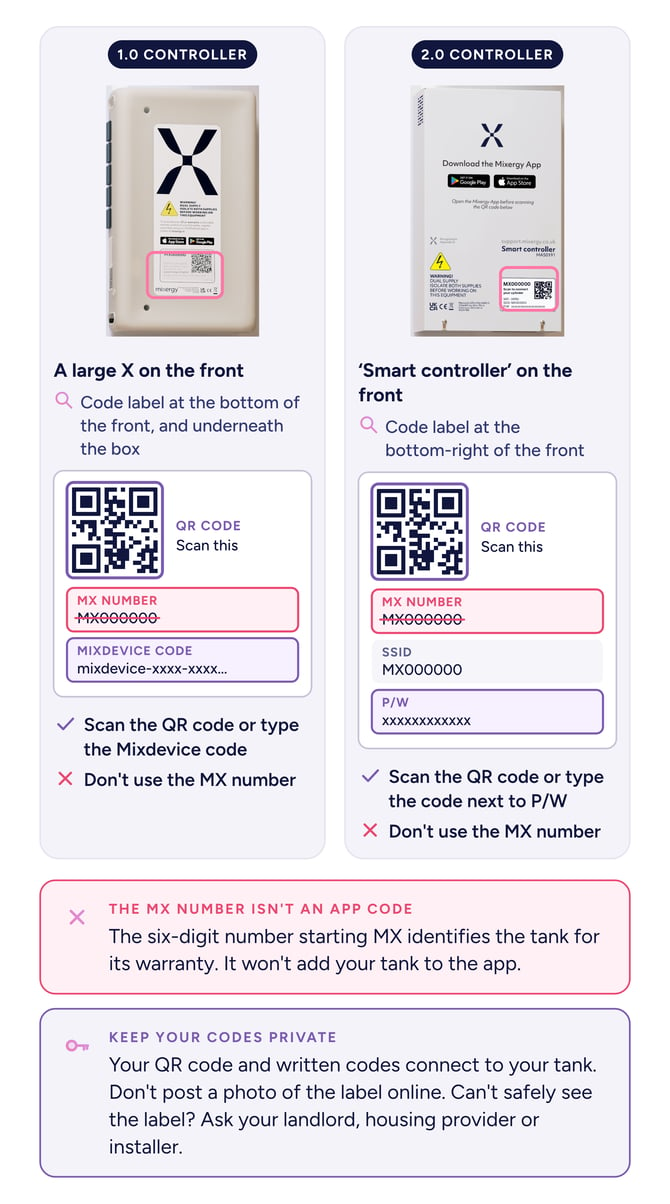
A 1.0 controller is a white box with a large Mixergy X symbol on the front.
2.0 controller
A 2.0 controller is a metal box with information printed directly on it.
TOP TIP
TOP TIP
A photo makes the small print easier to read. You can zoom in, scan the QR code from another device or show the details to a trusted support person.
Where is the label?
The label is attached to the outside of the controller box:
- On a 1.0 controller, look underneath the box.
- On a 2.0 controller, look underneath the box towards the bottom-right corner.
You might need a torch or your phone camera to see it. Only crouch or reach down if you can do so safely.
Which code should you use?
The correct code depends on your controller version.
If you have a 1.0 controller
Use either:
- The QR code on the label.
- The long 25-character Mixdevice code.
If you type the code, include every letter, number and symbol exactly as shown.
Do not use the shorter number beginning with MX when the app asks for the Mixdevice code.
If you have a 2.0 controller
Use either:
- The QR code on the label.
- The code printed next to P/W.
P/W means password. Enter that code if the app asks you to type the tank details instead of scanning the QR code.
What should you do with the code?
If you are setting up the Mixergy app:
- Open the app and choose to add your tank.
- Scan the QR code on the label.
- If scanning does not work, enter the correct written code for your controller version.
If you are connecting the tank to the internet, follow our connection guide.
The QR code and written codes help connect to your tank. Do not post a photograph of the label on social media or another public website. Only share it with someone you trust who is helping with your Mixergy setup.
What if you cannot safely reach or read the label?
Do not climb on furniture, stretch behind the tank or move any cables or pipework.
If you rent your home, ask your landlord, housing provider or site manager for the controller version and code. They might already have a photograph or installation record.
If you own your home, check your handover information or ask your installer. If the label is damaged or unreadable, tell your Installer, developer or housing provider.
Common questions
What is a Mixdevice code?
It is the code used to link a 1.0 Mixergy tank to the app. It is 25 characters long and is printed on the controller label.
Is the MX number the same as the Mixdevice code?
No. The MX number identifies the unit, but it is not the code to enter when the app asks for a Mixdevice code.
What does P/W mean on a 2.0 controller label?
P/W means password. Use the code beside P/W if the app asks you to enter the 2.0 controller details manually.
What should I do if the app rejects the code?
Check that you identified the controller version correctly and used the right code. On a 1.0 controller, use the 25-character Mixdevice code. On a 2.0 controller, use the P/W code. Do not use the MX number.
What if I cannot read the label?
If you rent, ask your landlord, housing provider or site manager for the details. If you own the home, check your handover information, ask your installer or developer.