If the Mixergy app freezes, closes unexpectedly or won’t open, try the checks below in order. After each check, open the app and try the action that caused the problem. If it works, you can stop.
An app crash does not by itself mean the tank has stopped heating. You can still use the controls on the tank while you check the app.
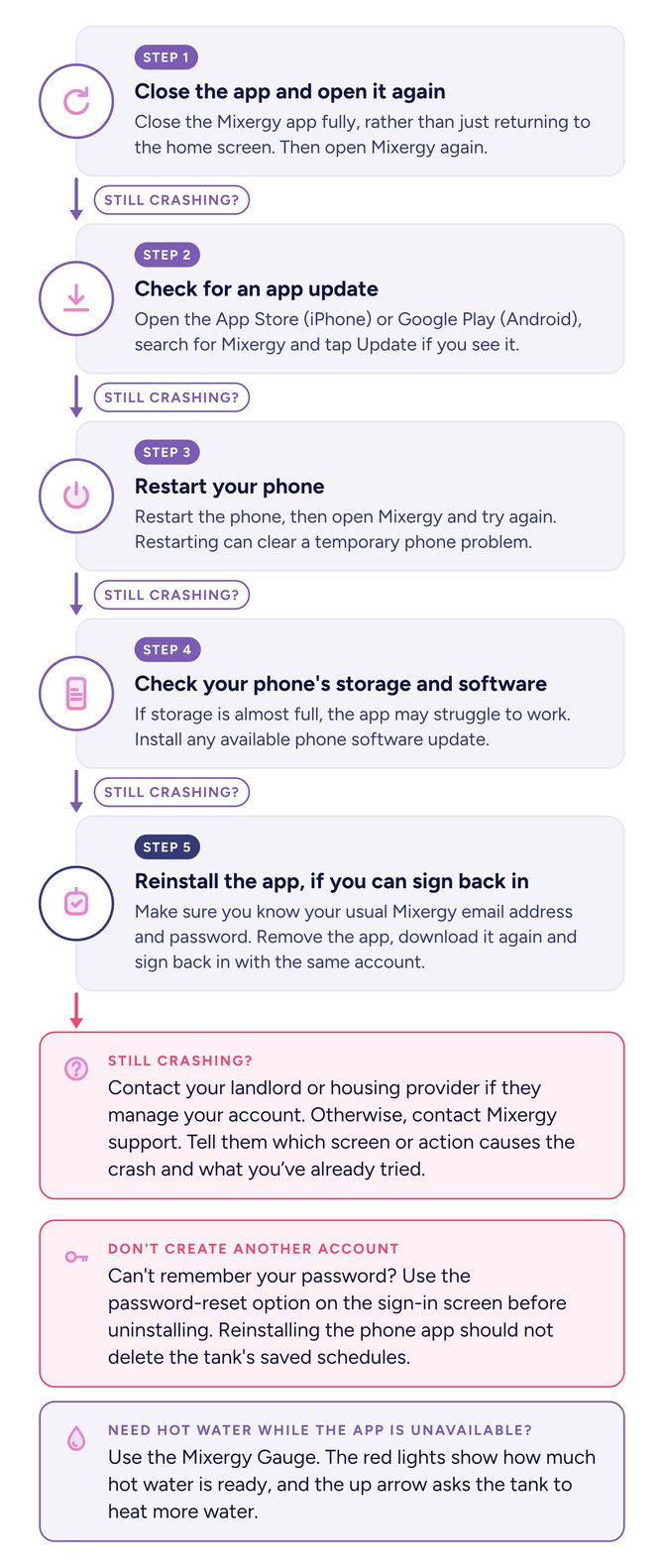
1. Close the app and open it again
Close the Mixergy app fully, rather than just returning to the home screen. On an iPhone without a Home button, swipe up from the bottom and pause in the middle. On an iPhone with a Home button, press it twice. Find Mixergy among the open apps and swipe its preview upwards. On Android, tap the recent-apps button or swipe up from the bottom and hold, then swipe the Mixergy preview away.
Open Mixergy again. If it asks you to sign in, use your usual account.
- The app works: no further check is needed.
- It still freezes or closes: continue to step 2.
2. Check for an app update
On an iPhone, open the App Store. On an Android phone, open Google Play. Search for “Mixergy” and open the app’s listing.
If you see an Update button, tap it. Wait for the update to finish, then open Mixergy again.
If there is no Update button, or the app still crashes after updating, continue to step 3.
3. Restart your phone
Restart the phone, then open Mixergy and try again. Restarting can clear a temporary phone problem.
If the app still crashes, continue to step 4.
4. Check your phone’s storage and software
Storage is the space your phone uses for apps and files. If it is almost full, the app may struggle to work.
On an iPhone, open Settings, then General, then iPhone Storage. On Android, open Settings and search for Storage using the search box or magnifying glass. Check how much space is free. If space is low, review the phone’s suggestions and remove only files or apps you no longer need. Keep a copy of anything important before deleting it.
On an iPhone, open Settings, then General, then Software Update. On Android, open Settings and search for Software update or System update. Follow the instructions if an update is available. Connect to Wi-Fi and make sure the phone has enough battery before starting. Menu names vary between Android models.
If you’re unsure whether your phone supports the Mixergy app, check the compatibility information in its App Store or Google Play listing, or ask Mixergy.
Try the app again after any changes. If it still crashes, continue to step 5.
5. Reinstall the app, if you can sign back in
Before removing the app, make sure you know the email address and password for your usual Mixergy account.
- You know your sign-in details: on an iPhone, press and hold the Mixergy icon, then choose Remove App and Delete App. On Android, find Mixergy in Google Play and tap Uninstall. Next, search for Mixergy in the App Store or Google Play and download it again. Sign back in with the same account.
- You don’t know your password: if you can reach the sign-in screen, choose the forgotten-password or password-reset option. Enter your usual account email and follow the instructions in the reset email. Check your spam folder if it doesn’t arrive. If the app crashes before you can do this, contact support before uninstalling. Don’t create another account to solve the crash.
- You can’t recover access or someone else manages the account: ask for help below. You don’t need to complete this step before contacting support.
Reinstalling the phone app should not delete the tank’s saved schedules. Don’t remove the tank from your account or reset ownership.
If the app still crashes after reinstalling, contact support. If one particular screen repeatedly crashes, you can report that without continuing to reinstall the app.
Need hot water while the app is unavailable?
Find the Mixergy Gauge, the slim black panel with lights and buttons on your tank.
- The red lights show how much hot water is ready.
- The up arrow asks the tank to heat more water. Heating takes time; pressing it does not provide hot water immediately.
See How to use the Mixergy controls for your hot water for help. If the gauge also doesn’t work or you have no hot water, follow No hot water as a separate problem.
If you can, try the same action using Wi-Fi and then mobile data, your phone’s internet connection without Wi-Fi. Tell support whether it fails on one or both.
If support asks for your phone software version: on an iPhone, open Settings, then General, then About and look for iOS Version. On Android, open Settings and search for Android version. For the installed Mixergy app version, try Settings, General, iPhone Storage, Mixergy on an iPhone.
On Android, open Settings, Apps, Mixergy and look for the version at the bottom or under app details. If no version is shown, tell support you couldn’t find it. You can still ask for help without this number.
Do not send passwords or a visible tank QR code. Don’t change controller settings or reset ownership to fix an app crash.
Common questions
Will reinstalling the app delete my schedules?
Your schedules should remain with the tank and account. Sign back in using the same email address, and don’t remove the tank from your account.
What if I can’t remember my password?
Use the password reset option on the sign-in screen before uninstalling. If you can’t recover access, contact support rather than creating another account.
What if only one screen crashes?
Note the screen and what you were doing just before it closed. Report this to support, including any error message. You don’t need to keep repeating the crash.
What if it crashes only on Wi-Fi or mobile data?
Try the other connection if available and tell support what happened. This helps them investigate whether the connection is involved.
Can I still get hot water without the app?
Yes. You can use the tank’s gauge to check the hot-water level and request more water. If those controls also fail, follow No hot water.
Quick visual guide. Everything above in one picture, so you can keep it handy or pass it on.