![Mixergy Logotype Reversed White-3.png]](https://support.mixergy.co.uk/hs-fs/hubfs/Mixergy%20Logotype%20Reversed%20White-3.png?height=40&name=Mixergy%20Logotype%20Reversed%20White-3.png)
First, check what controller you have
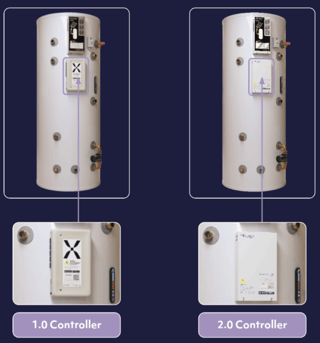
The 1.0 controller is a white box mounted on your tank with a large X logo on the front. The connection label sits on the bottom of the controller.
The 2.0 controller is a plain white box mounted on the front of your tank, marked "mixergy" and "Smart controller". The connection label sits on the bottom right of the controller.
Next establish what connection you have:
Ethernet connection (1.0 or 2.0 Controller)
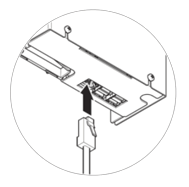
If a network cable runs directly from your controller to your router, you have an Ethernet setup.
TP-Link (1.0 Controller)
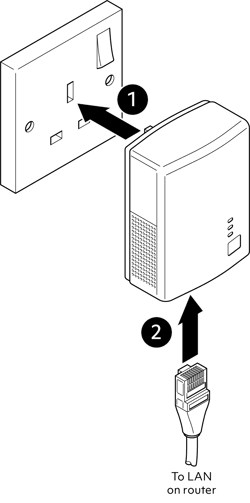
If you have a TP-Link plug in the wall with a cable running to your WiFi router, you have a TP-Link setup.
Wireless (2.0 Controller)
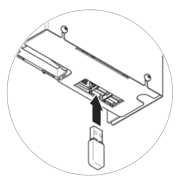
If you have a wireless setup, there will be a USB dongle plugged in bottom of the controller.
Next, navigate to whether its a first time set up, or a recurring issue:
First time setup: the tank won't connect
Ethernet or hardwired - both 1.0 or 2.0 Controllers
If the tank is offline:
- Confirm the Ethernet cable is securely connected into your router and the controller
- Check that your router or switch is powered
- Try a different Ethernet port in your router if available
- Check that the wall plate or access point is active
If you are unsure where the cable routes to, your installer or developer may need to trace the connection for you.
If the property has solar PV and a hardwired connection
Where a property has solar panels and a hardwired internet connection, two network cables usually run into the cupboard with your tank, and they plug into a double wall ethernet socket. One carries your internet connection. The other carries a signal from your electricity supply to the solar diverter on the tank. Both cables look similar, and if they're in the wrong ports the tank won't come online.
You can test this yourself:
- Find the double wall ethernet socket in the cupboard with your tank. Two network leads run from it to the tank (one into the Solar Diverter and the other into the Controller)
- Unplug both leads in the double wall socket and swap them over, so each one goes into the other port.
- Check that your Wi-Fi is working and wait 5 minutes, then check the Wi-Fi symbol on the Gauge. Blue means the tank is online.
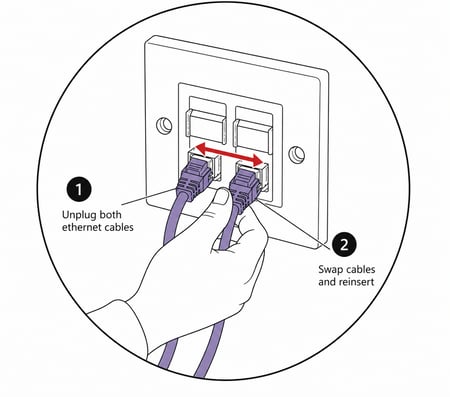
If nothing changes, put the leads back the way you found them and contact your installer. They'll need to check how the cables have been run.
TP-Link - 1.0 Controller
If the tank is offline, re-pairing may be required before a connection can be re-established, see connect your tank to the internet for more information.
If pairing fails:
- The TP Link adaptor should be plugged directly into the wall socket, no extension leads or surge-protected strips.
- The adaptor should be kept away from heavy electrical interference.
- Run the pairing process at least 3 times before deciding it's failed.
Move the adapter closer to the tank
Move the TP-Link to a wall socket closer to the cylinder. The signal travels through your home's wiring, so a shorter run makes a real difference. Moving one socket along is sometimes enough.
Reset both units and let them reconnect
If that hasn't worked after a few attempts, reset both ends instead:
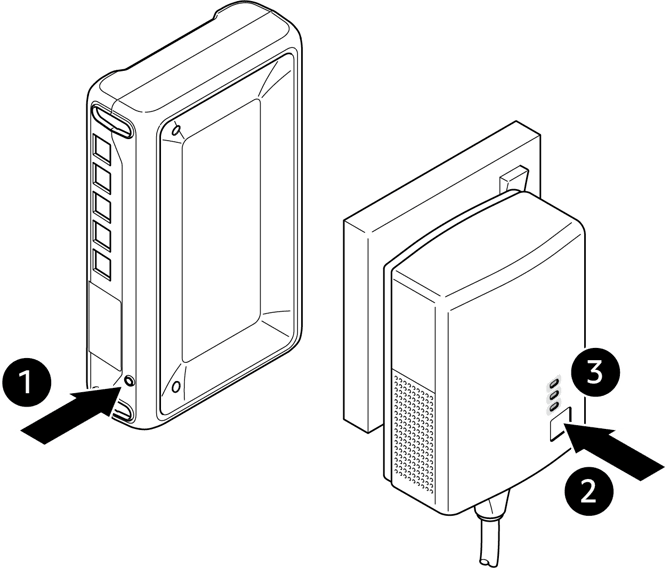
- Press and hold the Pair button on the TP-Link for 10 seconds, then let go (2).
- Press and hold the Pair button on the tank controller for 10 seconds, then let go (1).
Both units restart and clear their old settings. Give them a couple of minutes and they should find each other and connect on their own. If they don't, run through the pairing steps again.
Check for surge protection in your fuse box
Some properties have a surge protection device fitted inside the consumer unit (your fuse box). Surge protection can interfere with the signal the TP-Link adapters send through your wiring, and stop them pairing no matter how many times you try.
If you've worked through everything above and the adapters still won't pair, ask your installer whether surge protection is fitted. Don't investigate this yourself. Your installer or a qualified electrician needs to look at it, and they can advise on the options.
TP-Link placement best practices
For best performance:
- Plug adapters directly into wall sockets
- Avoid extension leads
- Keep adapters away from heavy electrical interference
- Use sockets on the same electrical circuit where possible
Wireless - 2.0 Controller
First, check the following on your phone:
- Wi-Fi is enabled
- Mobile hotspot is turned off
- VPNs are disconnected during setup
If your phone settings are correct, check the Wi-Fi light on the Gauge on the side of your tank for the following options:
- If the light is white, the tank is ready to connect. Try again.
- If the light is blue, the tank is already connected to the internet (this may be via Ethernet). Close the app fully, log back in and check if your tank appears.
- If the light is any other colour, restart the tank by turning the Gauge off and on, then try again.
- If there's no light, make sure the tank is powered on. See this article to learn more about how to use the Gauge.
It's connected before: the tank has stopped connecting
Your cylinder has been online before and it has stopped connecting.
A power cut can also interfere with the connection. If your tank connects through a TP-Link adapter, try re-pairing it using the TP-Link steps above.
If your tank is hardwired, check that your normal Wi-Fi is working. If your Wi-Fi is down, the tank will come back online once your internet connection is restored. If your Wi-Fi is working and the tank still won't reconnect, call us on the number below.
1.0 Controller (TP-Link)
Start with what’s new
It’s nearly always a change in the house rather than a fault in the cylinder. Check to see if any of the below has changed or happened:
- Anything new plugged in near the adapter, or on the same circuit. New chargers and extension leads often have surge protection built in, and that blocks the adapter’s signal.
- A new router, or new kit from your broadband provider. Even if the cable was moved across, a new router can sit somewhere slightly different.
- New Wi-Fi boosters or powerline adapters of your own. These can compete with the Mixergy adapter.
- Somebody moving the adapter to another socket, perhaps to free that one up.
If any of these has happened, try undoing what happened. Failing that, move the adapter back to a plain wall socket, well away from whatever’s new.
Then try these
- Check the TP-Link adapter is in a plain wall socket. Not an extension lead, not a surge-protected strip, and not a USB socket. This is by far the most common cause.
- Try a different wall socket, ideally closer to the router. The signal weakens over distance, and it’s more likely to drop if the adapter and the cylinder are on different circuits or different floors.
- Turn the cylinder off and on at the Gauge, unplug and reconnect the adapter, then re-pair them using the steps above. That clears a link that’s lost rather than fully broken.
2.0 Controller
If your cylinder connects over Wi-Fi
On a 2.0 controller, this usually means a weak signal rather than a broken connection. A router that’s moved, or new furniture in between, can be enough to tip it over.
A cable is the reliable fix, if one can reach. It’s also worth checking whether your network name or password has changed recently, because your cylinder will still be looking for the old one.
What to tell us if it keeps happening
Intermittent faults are the tricky ones to spot from our end, so a few details go a long way.
Let us know roughly when the drops started, and whether they happen at a particular time of day. Tell us what the adapter lights and the Gauge are doing while it’s offline. And do mention anything that was plugged in or installed around the time it began.
Still stuck?
If the tank still isn’t connecting after these checks, call our Homeowners & Residents line on 01865 884 343 (Option 3).
Opening Hours: Monday to Friday, 09:00 – 17:00.